.svg)
How to send a contract for signature from Claude with an MCP connector and skills
Connect Formify's MCP server to Claude, add the Formify skills, and ask for a contract in plain language. The assistant prepares a draft, offers a preview, and sends only after you confirm. Here are the four steps and the limits to know.


You can send a contract for signature from Claude without leaving the chat. It takes two parts: an MCP connector that lets Claude act on your Formify account, and a set of skills that teach Claude how to prepare, send and track a contract correctly. This post walks through both, shows what a request looks like, and explains where a human stays in charge.
Connector and skills do different jobs
An MCP server gives an AI assistant tools. The Formify MCP server exposes 50 tools (as of October 2026) for documents, drafts, files, templates, public signing links, webhooks and account data. With only the tools, Claude can call them but has to work out the right order itself.
Skills supply the knowledge. A skill tells the assistant when to use which tool, how a signature field must be placed, and what to check before anything is sent. Formify publishes five capability skills: PDF forms, sending a contract, verifying identity, tracking signatures and public signing links. A sixth covers Spanish real estate documents.
The tools do the work. The skills make the work reliable.
Step 1: connect Formify to Claude
The Formify MCP server lives at https://mcp.formify.eu/mcp.
- In Claude Desktop or Claude on the web, open the connectors settings and add a custom connector with that URL.
- Select Connect, sign in to Formify, and allow access.
- In Claude Code, add the same URL as a remote MCP server and finish the Formify login in your browser.
Sign-in uses OAuth 2.0 with PKCE, so no API key is needed. Claude never sees your password. Access tokens last one hour and your client refreshes them. If a client cannot complete OAuth, you can use a Formify API key instead. You can revoke access at any time under Settings → Integration in Formify.
Source: Formify developers, MCP server guide
Step 2: add the Formify skills
The skills install from the Formify skills marketplace, formify-e-sign/formify-skills. In Claude Desktop, open Plugins, choose Add marketplace, enter that address and install Formify Core. Plugins need a paid Claude plan. If plugins are not available on your plan, the skills can be added one at a time by hand. The repository README lists the install steps for Claude, Codex and other agents.
You never name a skill. You describe the job, and Claude picks the one that fits. The five capability skills cover:
- Forms and templates: building fillable PDF forms with signature fields.
- Sending: sending a template, an uploaded PDF or a document drafted in the chat.
- Verifying identity: BankID, ID-document scan, live face check or company lookup.
- Tracking: who has signed, reminders, corrections and the signed copy.
- Public links: one reusable link anyone can open and sign.
Step 3: ask for the contract
Start with the job in plain words. For example:
Here is our standard NDA. Send it to Maria Lopez (maria@example.com) for signature, and ask her to sign by hand.
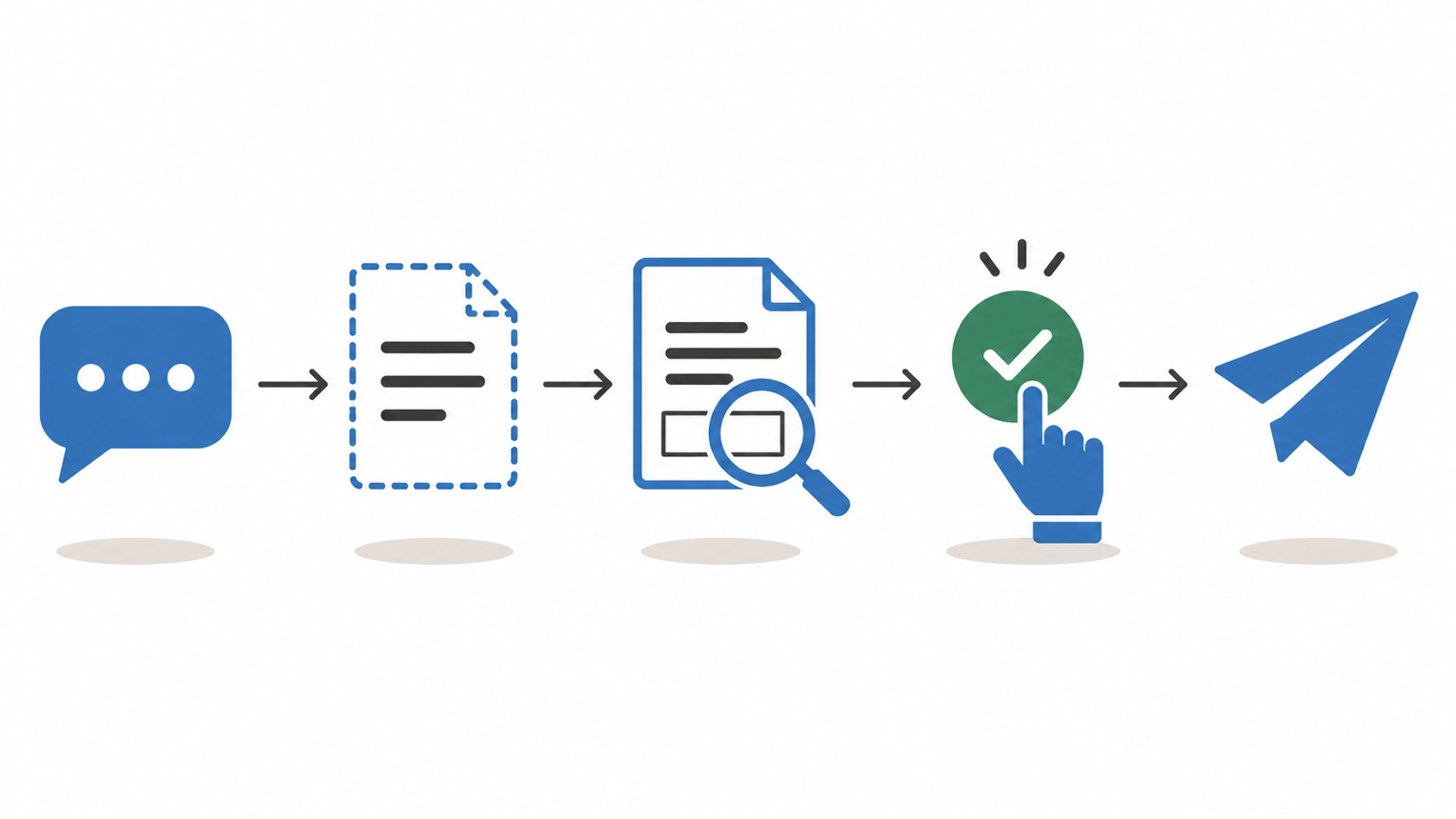
The send skill tells the assistant to work in a fixed order. It builds the request from your document and creates a draft. A draft is not a send: nothing reaches Maria yet. The skill then has the assistant offer a rendered preview that shows where each signature will land, so you check the document that will actually go out. Before it sends, it shows a summary of the document, each signer and the signing method, and asks for one explicit yes.
Signers can sign by hand, or with BankID, an ID scan or a live face check, if your account has those turned on. The method is set per signer, so one contract can use different methods for different people.
If you want to stop after the preview, ask the assistant to save the draft. It stays in your account until you come back to it.
Step 4: track signatures and send reminders
After the document goes out, ask in the same chat: "Who has signed the NDA?" The tracking skill reads the status, can send a reminder, can fix a wrong email address, and can fetch the signed copy. Two limits are worth knowing. Formify allows two reminders per signee per hour, and signed-document download links are valid for 10 minutes.
Source: Formify developers, MCP server guide
Keep a person in the loop
Connecting an assistant to a signing account is powerful, so set the rules before you start:
- The server does not add its own approval step. According to the Formify documentation, some tools send documents for signing directly, and it advises you to review tool results before confirming actions. The draft, preview and confirm order comes from the send skill, so keep the skill installed.
- Test with yourself first. Send a dummy document to your own address before the first real contract.
- Read the preview. It is where a misplaced or missing signature field shows up, so open it before you confirm.
- A method is not a legal class. Choosing BankID or an ID scan configures a check. It does not decide what a court or regulator will accept. Ask your adviser when a regulation applies.
TL;DR
- Two parts work together: the MCP server gives Claude tools, the skills give it the know-how.
- Connect https://mcp.formify.eu/mcp as a custom connector and sign in with OAuth. No API key is needed.
- Install the Formify skills from the formify-e-sign/formify-skills marketplace.
- Ask for the contract in plain language. The assistant drafts, offers a preview and sends after you confirm.
- You can track signatures and send reminders from the same chat. Keep a person in the loop for every send.
FAQ
Can I send a contract for signature from Claude?
Yes. Connect the Formify MCP server to Claude, add the Formify skills, and ask Claude to send a document to a named signer. Claude prepares a draft, offers a preview, and sends it after you confirm.
Do I need an API key to use the Formify MCP server?
No. OAuth 2.0 with PKCE is the recommended way, and you sign in to Formify in the browser. An API key is a fallback for clients that cannot complete OAuth.
Does Formify work with ChatGPT?
Formify's OAuth documentation names ChatGPT as an example of a third-party platform that can connect, but the MCP guide has no ChatGPT setup steps. Check which connector options your ChatGPT plan offers and use the same server URL.
What can the assistant do with the 50 tools?
It can create and send documents, work with drafts, upload and merge files, use templates, manage public signing links, register webhooks and read account data. Which actions it takes depends on what you ask and which skills are installed.
What is the difference between an MCP server and a skill?
The MCP server provides the tools that act on your account. A skill is a set of instructions that tells the assistant how to use those tools well, for example to preview a draft before it sends.


